
If your team bills by the hour, you know this problem. The work happens in Zoho CRM, but the time is tracked somewhere else: a spreadsheet, another app, or memory at the end of the week. Hours get missed, invoices are late, and nobody is sure which client used the most time.
Time Tracking for Zoho CRM solves this by putting the timer inside the CRM record where the work happens. It is a Zoho CRM extension on the Zoho Marketplace, built and supported by TechWave Solutions, an Official Zoho Partner. You can also see the full product page or read the user guide.
Key takeaways
✓
One-click timer on Deals, Leads, Contacts and Accounts, inside the record.
✓
Track time for CRM users and for contractors who have no CRM login, so you don’t need extra seats.
✓
Hours × rate is calculated for you, and each entry keeps the rate it was logged at.
✓
Reports by person, task, module and record, with export to Excel, PDF and CSV.
✓
All data stays in your own Zoho CRM. No external servers and no tracking.
In this article
1. What is Time Tracking for Zoho CRM?
2. Watch the 4-minute walkthrough
4. How it works in three steps
What is Time Tracking for Zoho CRM?
Time Tracking for Zoho CRM is an extension that adds a time tracking panel to your CRM records. Your team opens a Deal, Lead, Contact or Account, picks a task, and presses Start. When they press End, the time is saved on that record and the billable amount is worked out from the person’s hourly rate.
Everything else is built around that timer: manual entries for time you forgot to track, a task library, people and rates, and a reports tab that is ready for invoicing or payroll.
There is no separate app to open and no extra login. Zoho CRM does not come with a built-in timer for billable hours on records, so this extension fills that gap. See the setup guide for step-by-step help.

One-click Timer

One Timer per Person

Hourly Rates & Billing

Reports & Insights

Pause & Resume

Manual Entry

Tasks & Team

Excel · PDF · CSV
Watch the 4-minute walkthrough
See a timer run on a Deal, hourly rates turn into billable amounts, and a report exported, all inside Zoho CRM.
Time Tracking for Zoho CRM full walkthrough (4:14): installation, settings, Time Loggers, tasks, the timer and reports.
Key features
Built for services teams who invoice by the hour and are tired of rebuilding timesheets from memory. Here is what you get.
01
A one-click timer on any record
Start, pause, resume and end a timer right inside a Deal, Lead, Contact or Account. Choose the task and who the time is for, mark it as billable, and press Start. The panel also shows the total time on this record, today and this week.
✓
Works on Deals, Leads, Contacts and Accounts, and admins choose which modules track time
✓
Tabs for Logs, My today and My week, with a filter by person
✓
No separate login and no external app
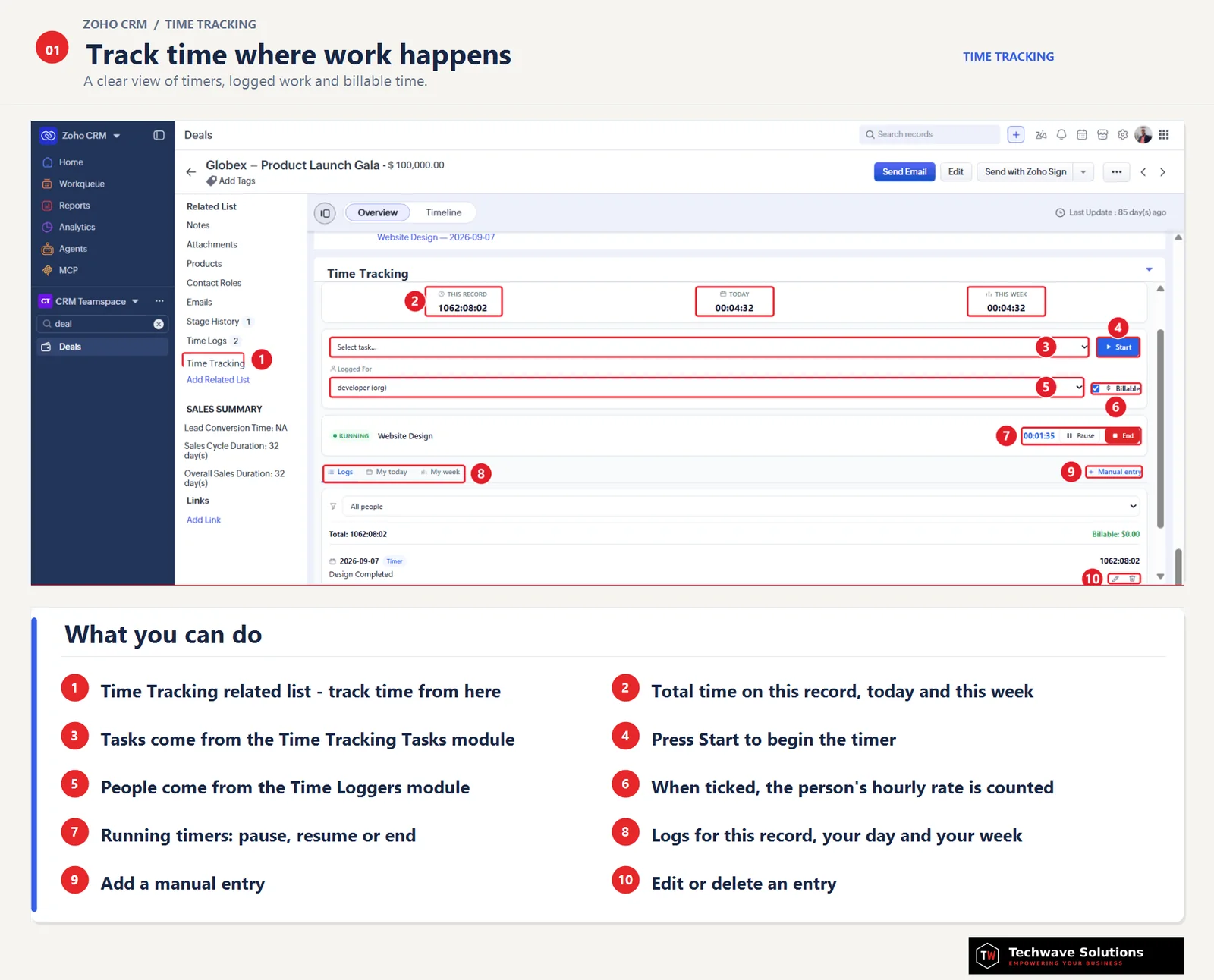
The Time Tracking panel inside a Zoho CRM Deal: totals, task and person, billable switch, running timer and logs.
02
Time Loggers: track anyone’s time, no extra CRM seats
Not everyone who works on a client has a Zoho CRM license. With Time Loggers you can track time for your CRM users and for people outside the CRM, such as contractors, sales people, developers or technicians, each with their own hourly rate.
✓
Sync New User creates a Time Logger for every CRM user in one click
✓
Add non-CRM people as loggers, so you don’t need to buy extra seats just to log their hours
✓
Mark loggers active or inactive without losing their history
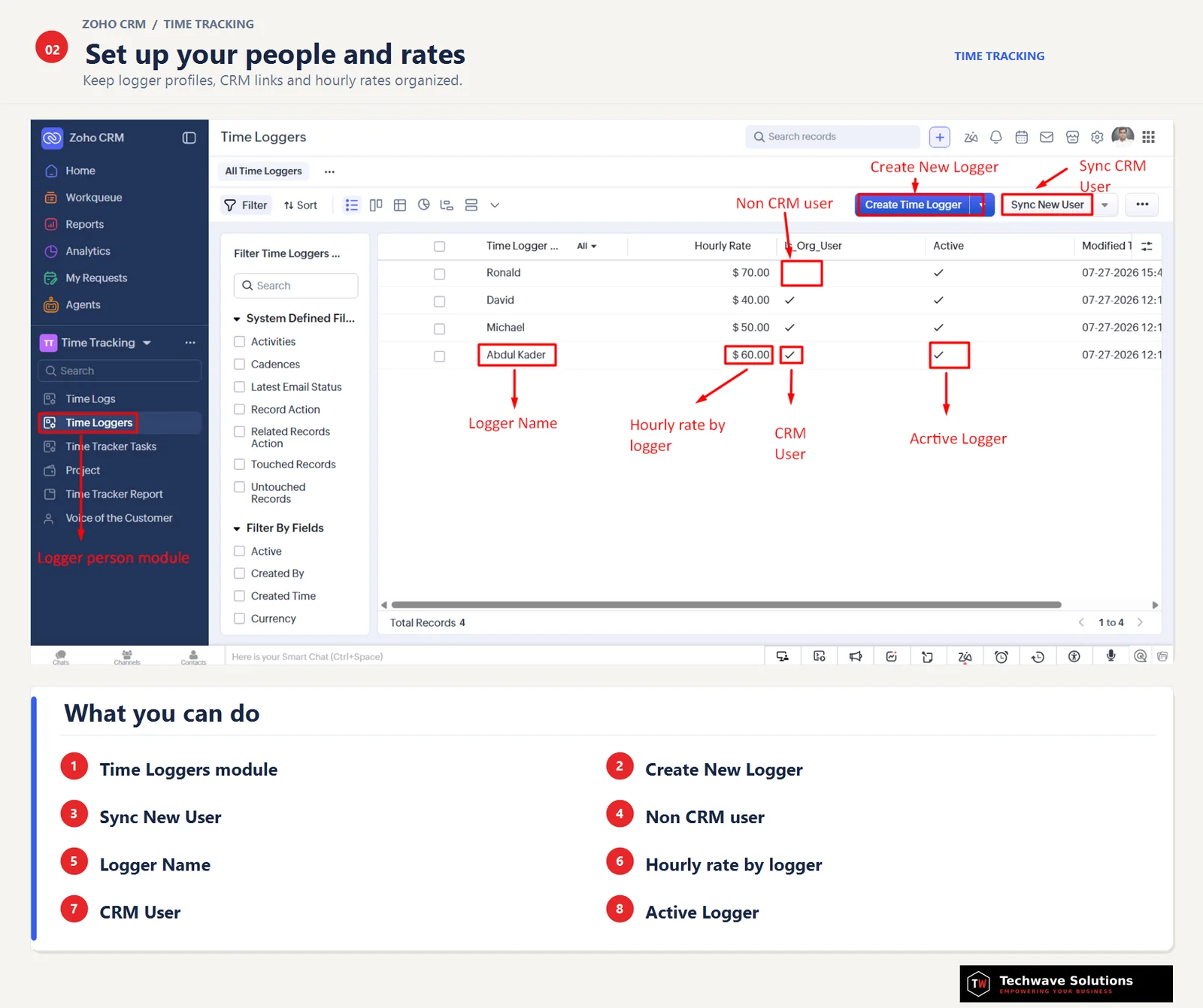
Set up your people and rates in the Time Loggers module, for CRM users and non-CRM users alike.
03
Billable amounts, calculated for you
Each person has an hourly rate, and hours × rate is calculated on every entry. More importantly, the rate is saved with the entry. If someone’s rate changes next month, past billing stays exactly as it was.
✓
The rate is stored on each entry, so changing a rate never rewrites old invoices
✓
Non-billable work is kept out of the billable total
✓
Edits keep the rate the entry was originally logged at
04
Manual entry, edit and delete
Forgot to start the timer? Add the date, duration, task and description by hand. Logged the wrong time? Change the date, duration, task, description or billable flag, or delete the entry, from the same panel.
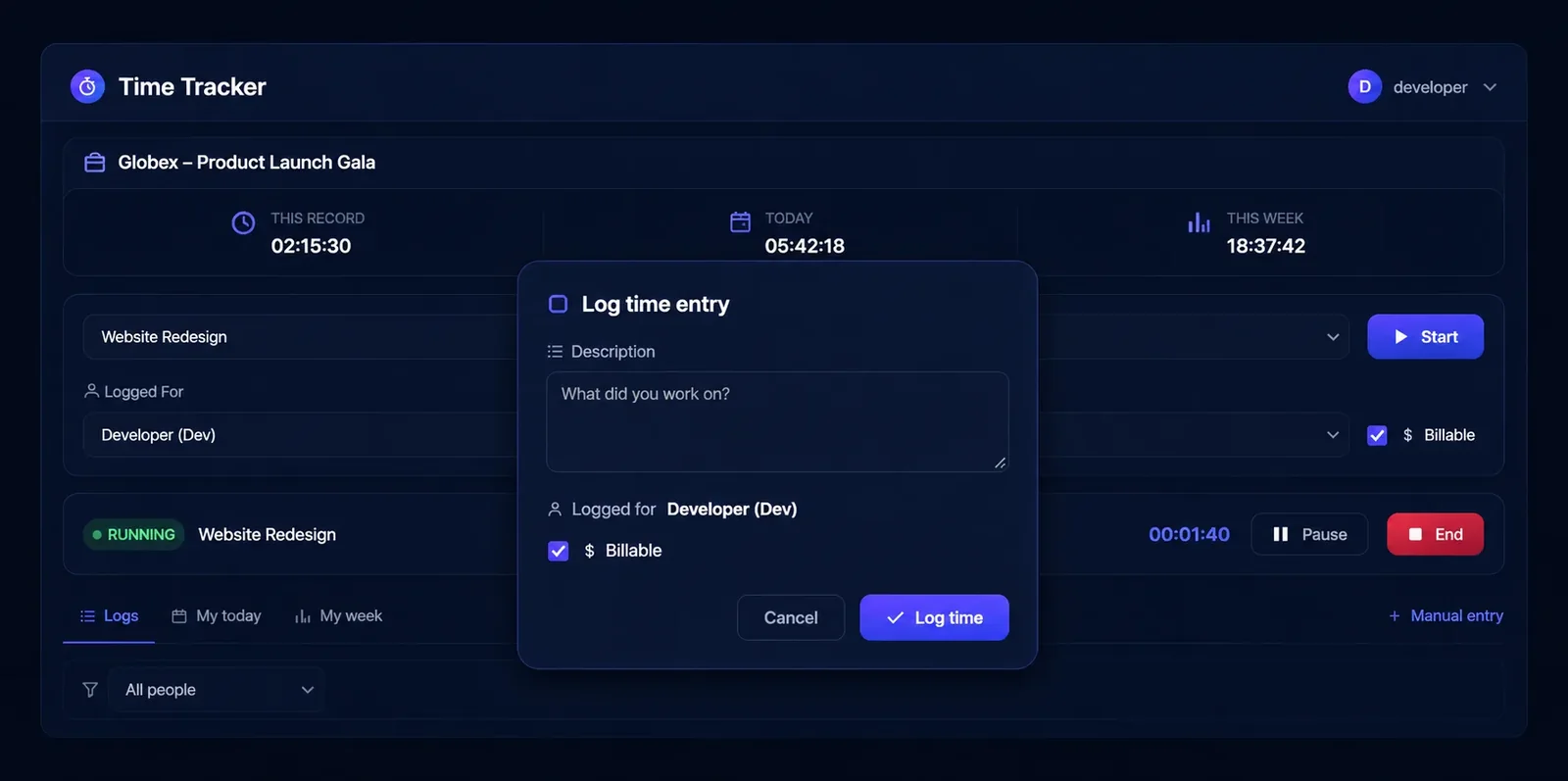
When a timer ends, confirm the entry with a description and the billable flag.
05
A reusable task library
Create the tasks your team actually does, such as Client briefing call, Budget planning or Development, and tag each one to the modules where it applies. A task tagged to Deals will not show up on Leads, which keeps the list short and relevant.
✓
Tasks are tagged to modules and only appear where they belong
✓
Deactivate a task without deleting its history
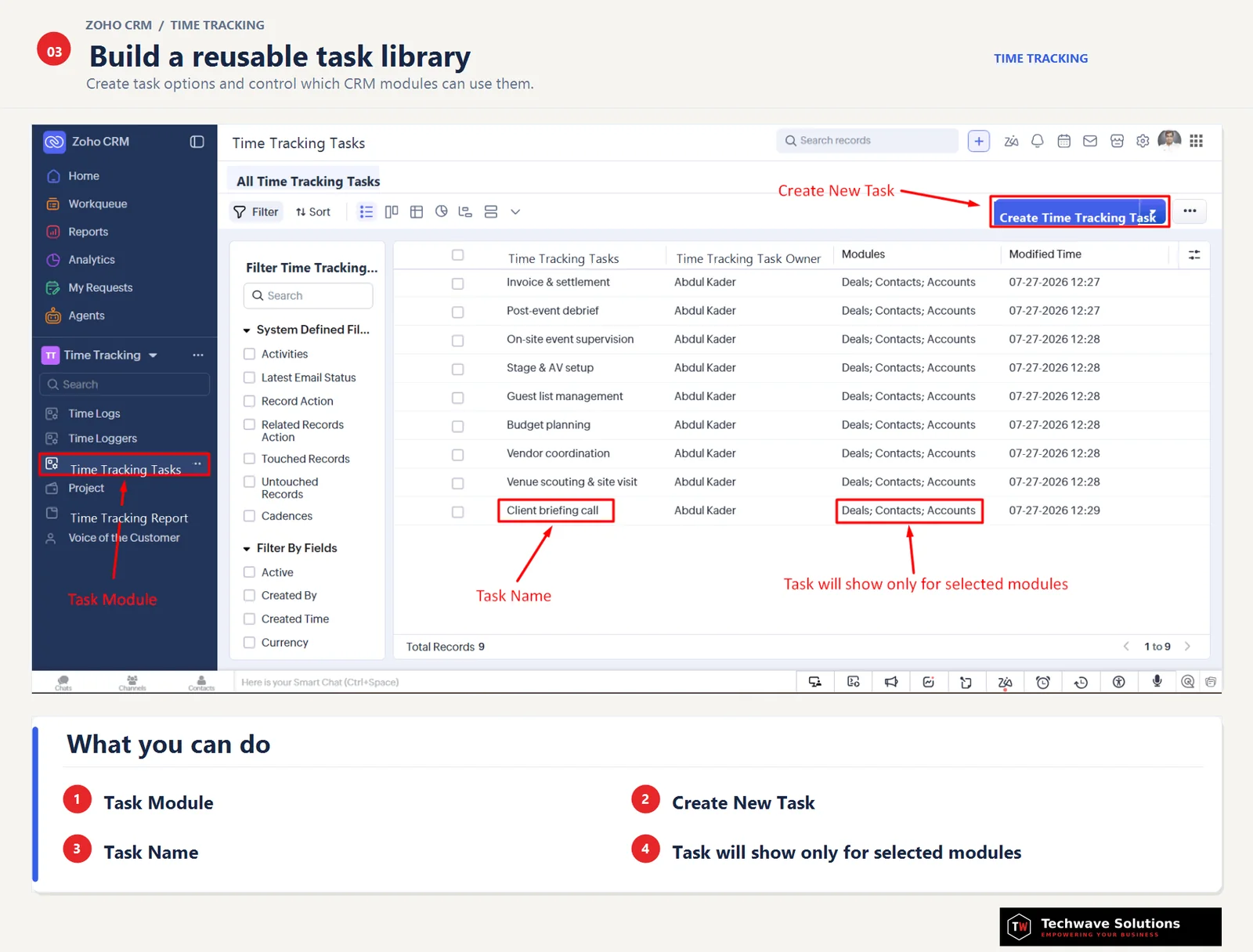
Build a reusable task library and control which CRM modules can use each task.
06
Reports that drive invoices
The Time Tracking Report tab shows total time, total earnings, records with time logged and team members in one place. Charts show time and earnings per person, hours by task, billable vs. non-billable time and billable amount by record.
✓
Filter by period (today, week, month, quarter, year or custom), user, module, task and billable status
✓
Top records, tasks, users and modules, plus a full activity list
✓
Export the filtered report to Excel (.xlsx), PDF or CSV for invoicing or payroll
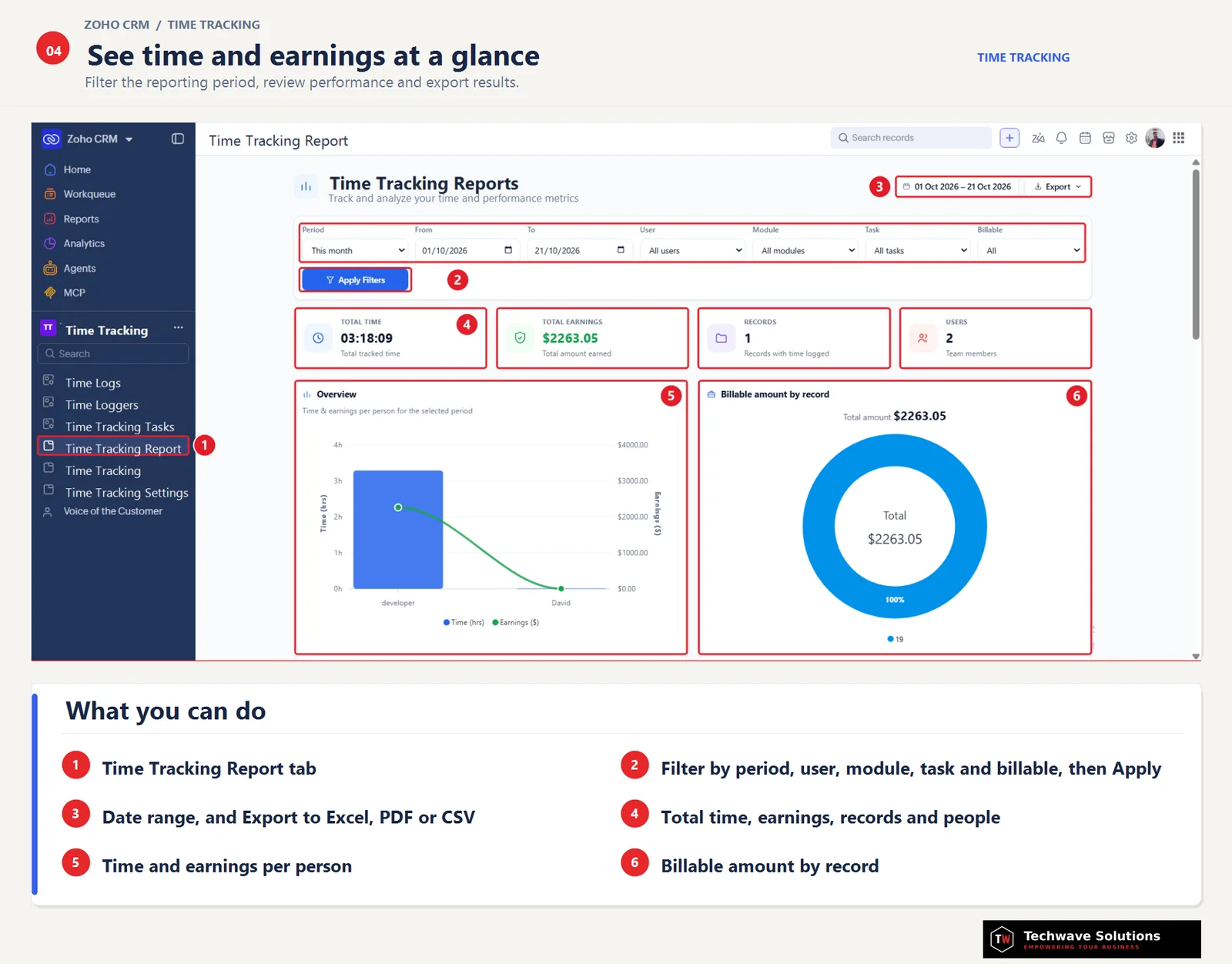
See time and earnings at a glance, filter the period, and export to Excel, PDF or CSV.
07
Admin controls and privacy by design
Admins choose which modules track time and who can see everyone’s time. Everyone else sees only their own entries, and the User filter in reports only appears for people with full report access.
Time data is stored in your own Zoho CRM modules: Time Logs, Time Loggers and Time Tracker Tasks. There are no external servers and no tracking. The only data that leaves your org is a simple install and uninstall notification (the installer’s name and email) so the publisher can support you.
How it works in three steps

Step 1
Open a record
Open a Deal, Lead, Contact or Account and choose the person and the task.
Step 2
Start, then End
Press Start, pause if you need to, and press End when you are done. Or add the time manually.
Step 3
Report and export
Open the Time Tracking Report tab to see totals, then export to Excel, PDF or CSV.
Who it is for
Agencies
Bill every client hour from the Deal or Account it belongs to.
IT and software teams
Track development and support time per client, with tasks like Development or Testing.
Consultants
Turn hours into clear, invoice-ready amounts at each person’s rate.
Service and field teams
Log technician and contractor hours as Time Loggers, without extra CRM seats.
Sales teams
See how much time each deal really takes, from calls to demos.
Managers and finance
Review workload by person and task, then export for payroll.
Inside your CRM vs. a separate time app
Many teams start with a stand-alone time tracker. It works, but the time lives away from the client record. Here is how tracking inside Zoho CRM compares.
Typical separate time app
Time Tracking for Zoho CRM
Where you track
Another tab or app
A panel inside the CRM record
Link to the client
Matched by hand later
Every entry is tied to its record
Billable amount
Exported and calculated later
Hours × rate on every entry, rate saved
People without a CRM login
Need an account in the other tool
Added as Time Loggers, no extra CRM seats
Where data is stored
The other vendor’s servers
Your own Zoho CRM modules
Product specifications
Product
Time Tracking for Zoho CRM
Publisher
TechWave Solutions, Official Zoho Partner
Platform
Zoho CRM. Runs as a panel inside the record, no separate account
Supported modules
Deals, Leads, Contacts, Accounts
Tracking
One-click timer (start, pause, resume, end), manual entry, edit and delete
Billing
Per-person hourly rates saved with each entry; billable and non-billable
Tasks and people
Module-tagged tasks; Time Loggers for CRM users and outside contractors; Sync New User
Reporting
Totals, charts, top lists and activity; filter by period, user, module, task and billable status
Export
Excel (.xlsx), PDF, CSV
Data and privacy
Stored in your own Zoho CRM modules. No external servers, no tracking
Support
support@techwavesolutions.net · WhatsApp +880 1733-687284
Frequently asked questions
Which records can I track time on?
Deals, Leads, Contacts and Accounts. An admin chooses which modules track time, and each entry is tied to the specific record, so reports show exactly where the time went.
Can I track time for contractors who don’t have a CRM login?
Yes. Add them as Time Loggers with their own hourly rate and log time for them, with no extra CRM seats needed. For CRM users, Sync New User creates their Time Loggers in one click.
What happens to past entries if I change someone’s rate?
Nothing. The rate is saved with each entry, so changing a rate later never changes past billing, and editing an entry keeps the rate it was logged at.
Can I fix or delete an entry after it’s logged?
Yes. From the same panel you can change a completed entry’s date, duration, task, description or billable flag, or delete it.
Who can see the reports?
Everyone sees only their own time by default. Admins choose who can see everyone’s time, and the User filter only shows for people with full report access.
Which formats can I export?
Excel (.xlsx), PDF and CSV. The export follows the filters you set in the Time Tracking Report tab.
Does my data leave Zoho CRM?
No. Time data is stored in your own Zoho CRM modules: Time Logs, Time Loggers and Time Tracker Tasks. There are no external servers and no tracking.
Can I add time I forgot to track live?
Yes. Use Manual entry to add the date, duration, task and description by hand.
Can I add time I forgot to track live?
Yes. Use Manual entry to add the date, duration, task and description by hand.
Start tracking billable time today
Install Time Tracking for Zoho CRM and stop guessing where the hours went.

About TechWave Solutions. TechWave Solutions is an Official Zoho Partner that builds Zoho Marketplace extensions and custom Zoho solutions. Learn more at techwavesolutions.net, write to support@techwavesolutions.net, or message us on WhatsApp at +880 1733-687284.
